You type one of your product names into Google, and in the Shopping tab you see competitors, with a photo and a price. Yet they don't necessarily have an ad budget: many of those spots are free listings.
If you already have a Google Merchant Center account, you are a few settings away from being there too. We'll show you which ones, then how to check in the reports that this traffic is really coming in.
- Yes, you can appear in Google Shopping without paying: these are free listings, managed in Merchant Center, with no Google Ads.
- They are on by default in most cases. Check under Marketing > Marketing methods.
- To be shown, you need approved products, shipping and returns set up, and complete attributes.
- Free traffic shows up in Analytics > Products, with the Traffic filter set to "Organic".
- Turned on doesn't mean shown: the quality of titles and images makes the difference.
This article assumes an existing Merchant Center account with a feed already sent. If that's not your case, start with our tutorial on creating a Merchant Center account, then come back here.
Free listings vs Shopping ads: what changes
Both show your products with an image and a price, and both start from the same Merchant Center feed. The difference is who pays, and who is in control.
| Free listings | Shopping ads | |
|---|---|---|
| Cost | None | Charged per click |
| Where you set it up | Merchant Center only | Merchant Center + Google Ads |
| Placements | Organic results: Shopping tab, Search, Images, YouTube... | Ad slots, labeled as sponsored |
| Control over visibility | Indirect: data quality | Direct: budget, bids, campaigns |
| Guaranteed display | No | No either, but budget matters |
The two are not mutually exclusive. Many stores start with free listings, look at which products get clicks, then put their ad budget behind those.
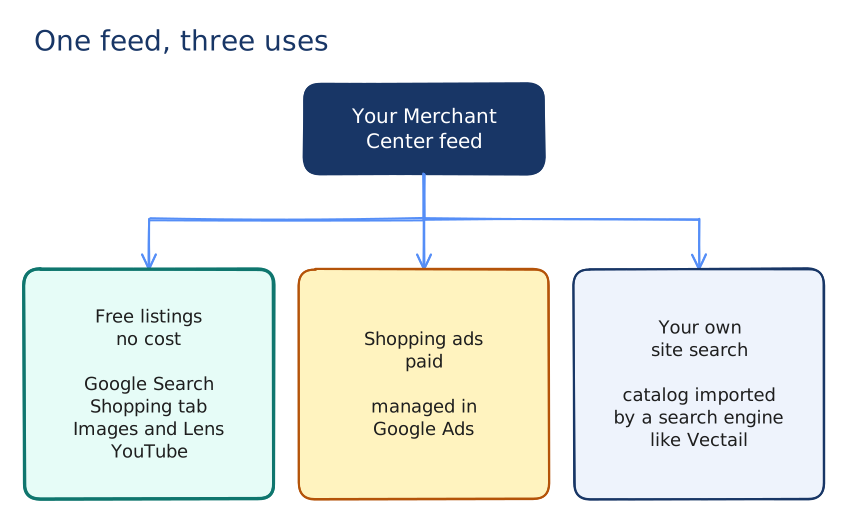
Where your products can appear for free
"Free Google Shopping" is a shortcut: free listings are not limited to the Shopping tab. According to Google, your products can show on:
- Google Search, as rich results with price, availability and reviews;
- the Shopping tab (google.com/shopping). In some European Union countries, it is labeled "Products";
- Google Images and Google Lens, with a "Product" annotation;
- YouTube, next to videos and in search results;
- Google Maps and Gemini, plus the products module of your Business Profile if you link it.
Not every format exists everywhere. The "Popular products" carousel, for instance, is limited to mobile in the United States. Rich results and Google Images, on the other hand, are available worldwide.
Do you have a physical store? The same page offers free local listings, which show the products you have in stock in store. They need a separate setup (local inventory, Business Profile) and deserve their own project.
Step 1: check that free listings are on
In the Merchant Center left menu, open Marketing, then Marketing methods. The Free listings card, in the "For online store" block, shows the program status.
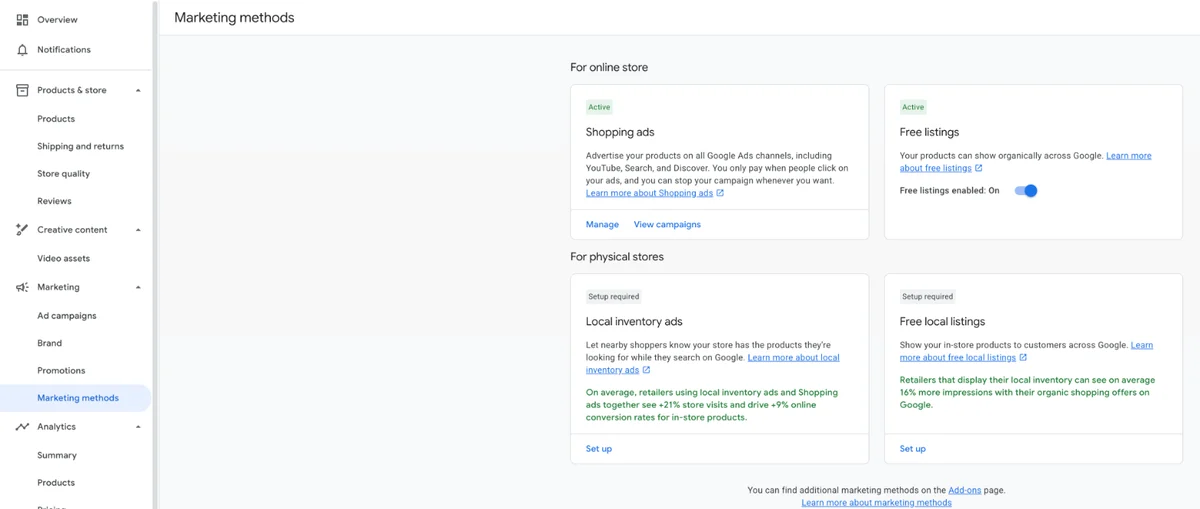
If the switch says "On", there is nothing to do here. If it is off, turn it on: you need admin access to the account for that.
Was your account created by your platform's integration or by an agency? Google notes that for accounts created through a partner, the setting is changed on the partner's side. If the switch is greyed out, look for the option in your platform's app or plugin.
Step 2: meet the display requirements
A switch turned on is not enough. Google shows your products only if they follow its policies and the account is complete. Here is what it checks:
- Products are approved: nothing blocking in Products, "Needs attention" tab.
- Shipping costs are set up: they are required in about thirty countries, including the United States, the United Kingdom, Canada, Australia, Germany and France.
- Your return policy is published on your site, and ideally declared in Merchant Center.
- Each product has the required attributes:
id,title,description,link,image_link,price,availability,brand,gtinormpn. - For apparel:
color,size,gender,age_group, anditem_group_idfor variants.
If you went through the full account setup (site verified, shipping, returns, feed), these points are already covered. What remains is watching for disapprovals over time, one product at a time.
Step 3: make your listings more visible
On free listings, you can't buy visibility. Google picks the products that best match the search, based on your data. So the levers are in the feed.
The title: the words the shopper types
It's the field the shopper reads first, and the one Google matches against their search. A title that opens with the product's brand name ("Sencha Kyoto") misses someone searching for "organic loose leaf green tea". Put the product type first, then what sets it apart.
The image: sharp, neutral background, no banner
In a grid of results, the image is what people see before anything else. Choose a photo of the product alone, well lit, on a light background, without promotional text or watermark. For variants, one image per color.
The price: up to date, and struck through during a sale
Use the sale_price attribute during your sales instead of changing the base price: Google can then show the original and the reduced price, on free listings as well as on ads. And a price that differs from your site takes the product out of the results.
Reviews: your store rating
Store ratings are displayed next to your store name on free listings. You generally need at least 100 eligible reviews to get one. They can come from the free Google Customer Reviews program, managed in Merchant Center, or from partner review platforms.
- Product type at the start of the title
sale_pricefor promotions- One image per color variant
- A title limited to the brand name
- "Sale" or "-30%" written in the title
- A feed price lagging behind your site
Step 4: measure free traffic
The report lives in Analytics > Products, Traffic tab. It needs a verified site and at least one approved product to fill up. By default it mixes free and paid: click the Traffic filter, choose Organic, then "Apply".
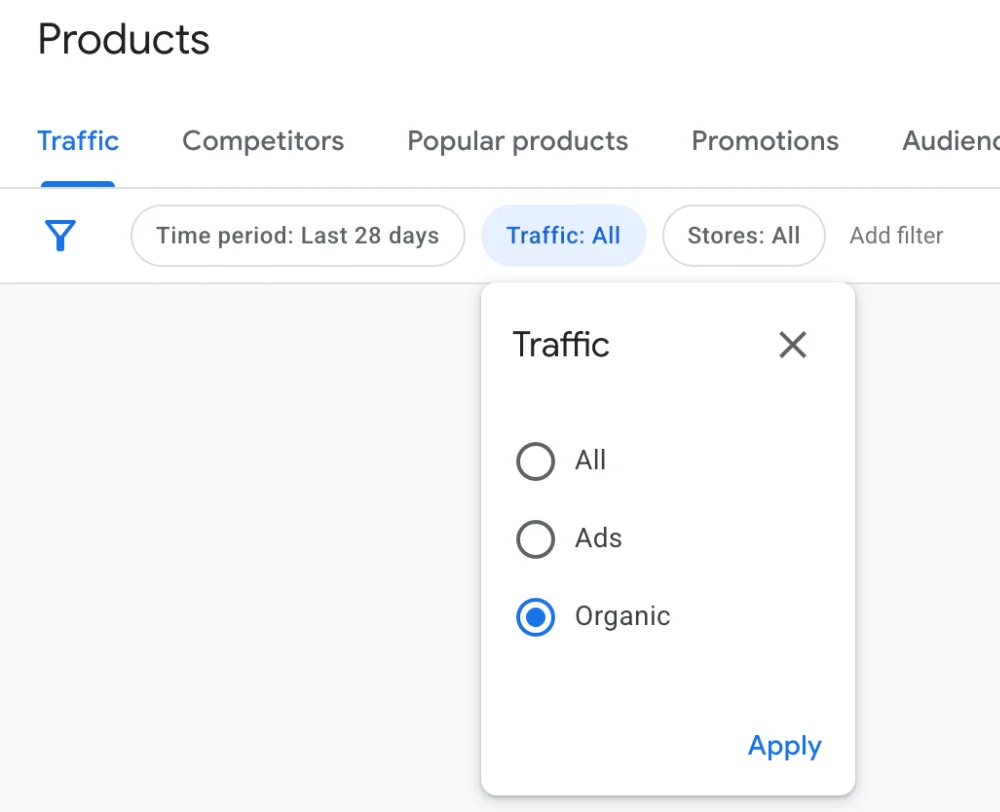
Without a filter, the chart shows both lines side by side, so you can see at a glance how much of your clicks are free.
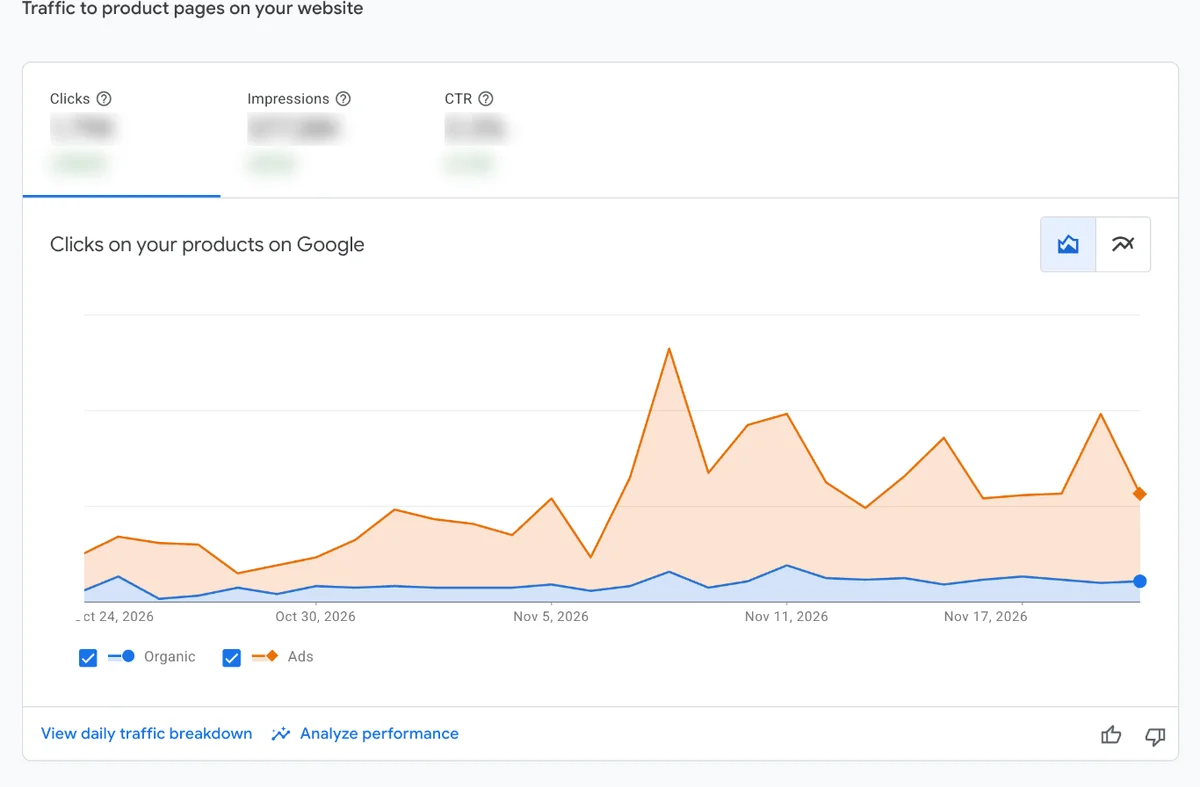
Three metrics are shown by default: clicks (visits to your product pages), impressions and CTR. Further down, the report ranks your products, brands and categories; "View all products" gives the full list, which you can export with the download icon.
A tea store with 300 products filters on organic results over 28 days: 18,000 impressions and 270 clicks, so a CTR of 270 ÷ 18,000 = 1.5%. In the product ranking, one sencha shows 2,400 impressions for 12 clicks: 12 ÷ 2,400 = 0.5%, three times below average. Google shows it, but nobody clicks. Its title was just "Sencha Kyoto": it's the first product to rewrite.
The "Purchases" and "Purchase rate" metrics stay empty until you add a conversion source, such as Google Analytics, in Merchant Center. That's what links a free click to an order.
Your products don't show up? Causes to check
Before concluding that "free listings don't work", go through these four points in order. The first "no" almost always gives you the answer.
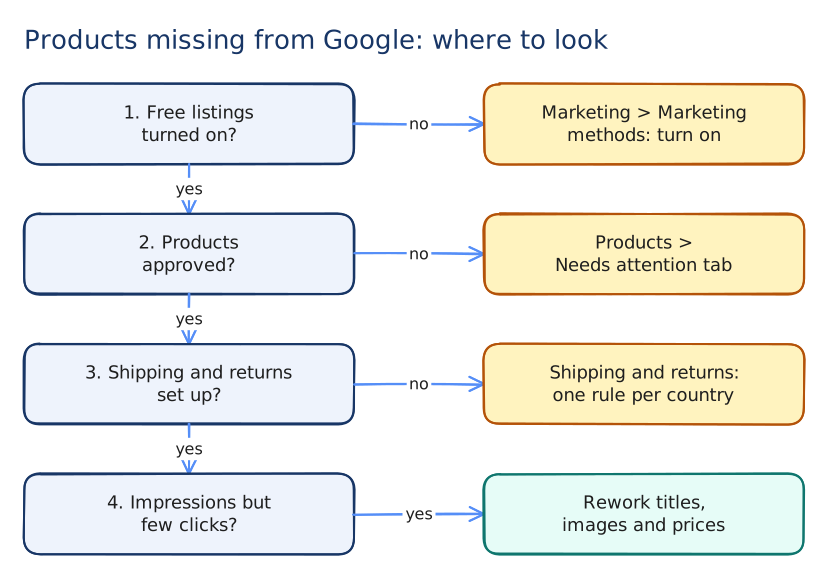
If everything is green and impressions stay low, the reason is often elsewhere: your products don't match the words shoppers type. Compare your titles with the searches in your niche, and give the account time: display is never guaranteed, even with a spotless feed.
The same feed for your own site search
At this point you have a clean feed: explicit titles, complete attributes, up-to-date prices. Google uses it to show your products for free. It can also work for you once the visitor has landed on your store.
That's what Vectail does. To be clear: Vectail plays no part in how you appear on Google. It imports your catalog from Merchant Center to run your store's internal search, with the same titles and attributes you have just polished. The work done for free listings pays off twice. For the details, our article explains how your Merchant Center feed powers your site search.
Your checklist
- Free listings set to "On" in Marketing > Marketing methods
- "Needs attention" tab empty, or close to it
- Shipping and return policies set up for each country
- Titles rewritten: product type first, no promotional wording
- Sharp images, one per variant, no text
sale_priceused for promotions- Products report filtered on "Organic", checked every month
- Products with high impressions but low CTR reworked first
Frequently asked questions
Is Google Shopping really free?
Free listings are: appearing in the Shopping tab and in Google's organic results costs nothing, and neither does the Merchant Center account. Only Shopping ads, managed in Google Ads, are charged per click.
Do I need a Google Ads account to appear in the Shopping tab?
No. For free listings, a Merchant Center account with approved products is enough. Google Ads is only needed for paid ads.
Can I appear in Google Shopping without Merchant Center?
Not in the Shopping tab: Google states that Merchant Center is required to appear there. Product structured data on your pages can, however, be enough to get rich results (price, availability) in regular Search.
Your feed is ready? Put it to work on your site too
Vectail imports your catalog from Google Merchant Center and installs a search powered by Google Vertex AI on your store: results as you type, natural language understanding, typo tolerance. One line of code, no plugin.
Start for free - 14-day free trial, no credit card